
☁️ AirDrop Import
AirDrop Import
1. Enable AirDrop on your iPhone:
Open Control Center by swiping down, then long-press on the Wi-Fi or Bluetooth area. More connection options will appear — tap "AirDrop" and make sure it's turned on. If you're transferring between your own devices or contacts, select "Contacts Only". For transfers with non-contacts, select "Everyone".
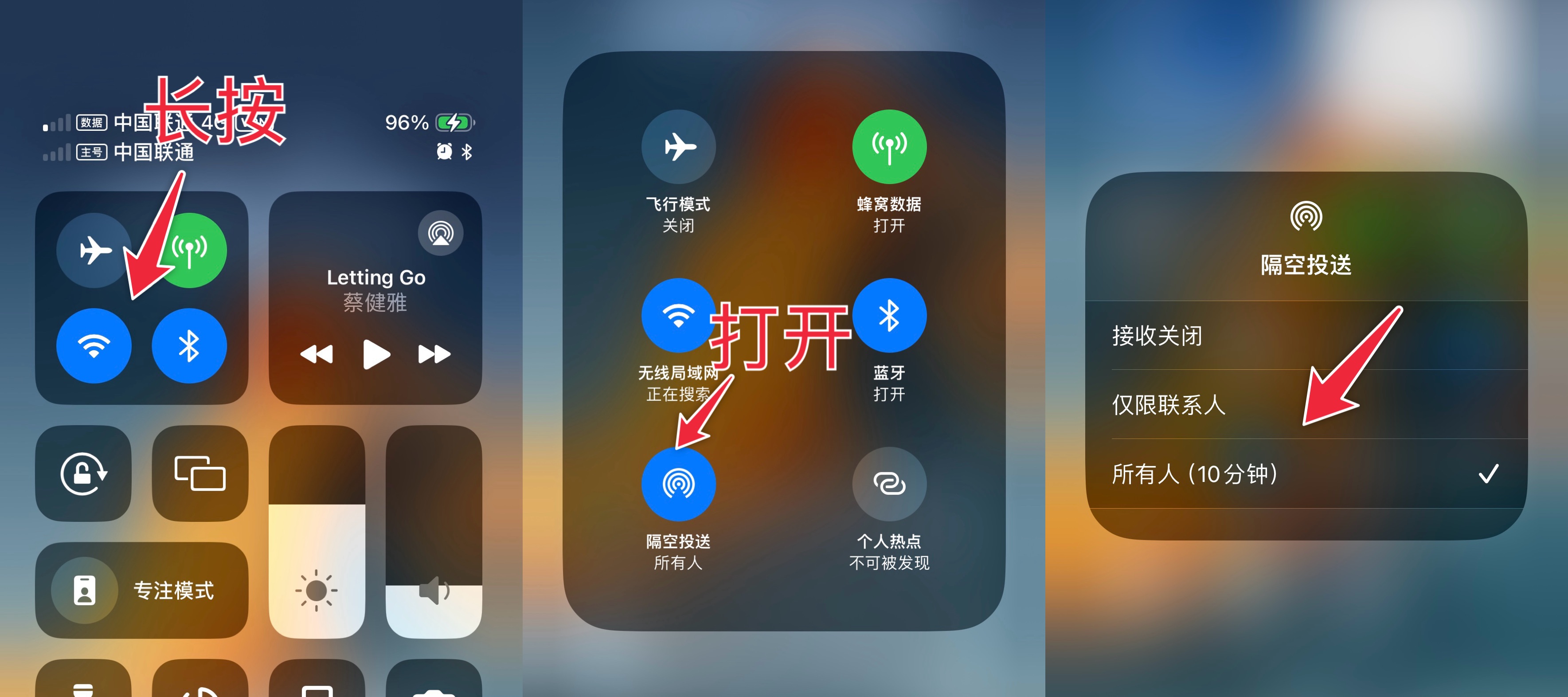
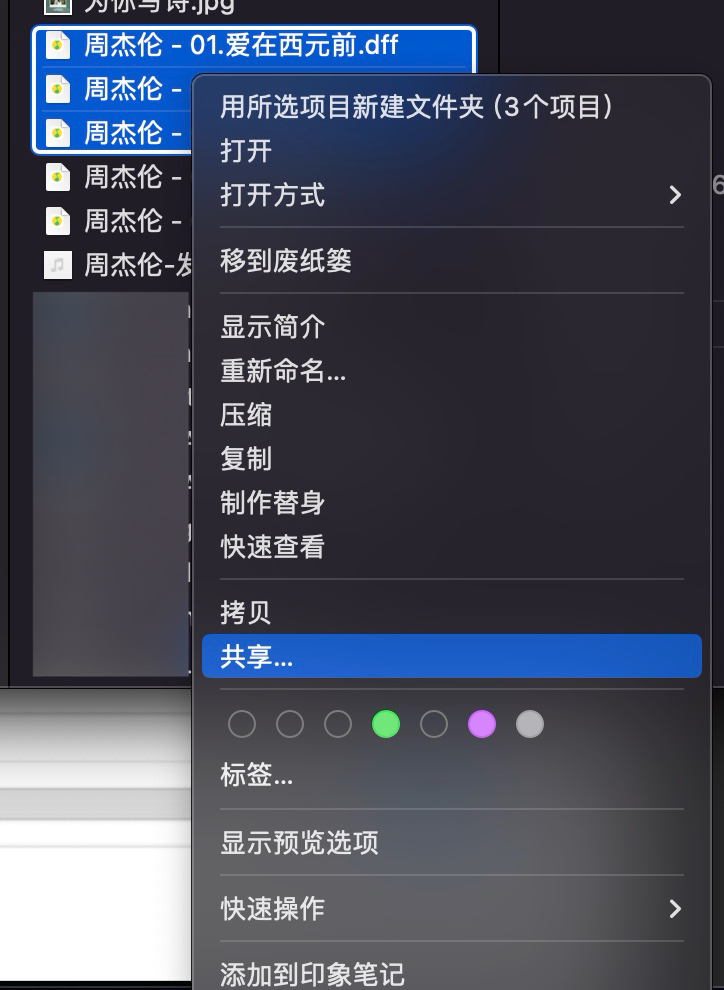
2. On your Mac or other Apple device: Select file → Share → AirDrop
Select the file(s), then right-click (or two-finger tap on trackpad) to open the context menu, and choose "Share".
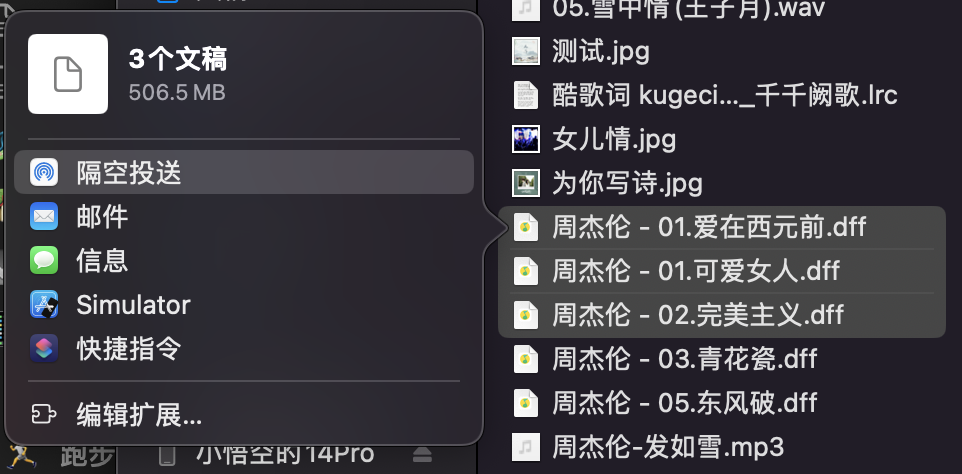
In the sharing options, select "AirDrop".
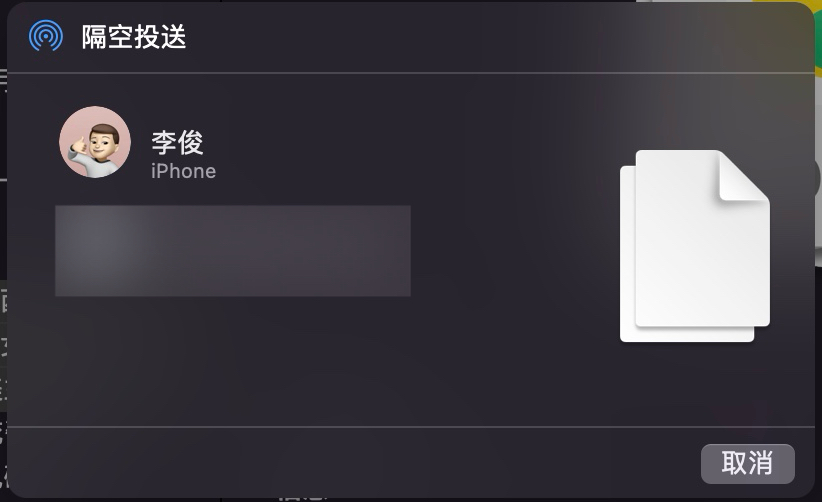
Then click on your iPhone, iPad, or other Apple device in the AirDrop window to start the transfer.
Note: The receiving device must be unlocked for it to appear. If the device is locked, it won't show up here.
3. After receiving the file on your phone, choose to save it to "Files" or open it with One Player
If you choose to save it to "Files", you'll need to use the Files app to move the music file into the "One Player" folder, then go to One Player's settings and tap "Scan Local Audio Files".