Watch Offline Music Guide
1. Install OnePlayer on Apple Watch
Update OnePlayer to the latest version and make sure your Apple Watch is running at least watchOS 8.
Open the Watch app on your iPhone, scroll down, find OnePlayer under "Available Apps", and tap "Install". The system will automatically install OnePlayer on your watch. This process may take some time — please be patient.
2. Transfer Music to Watch
Once OnePlayer is installed on your watch, you can select songs from the phone app to transfer to the watch.
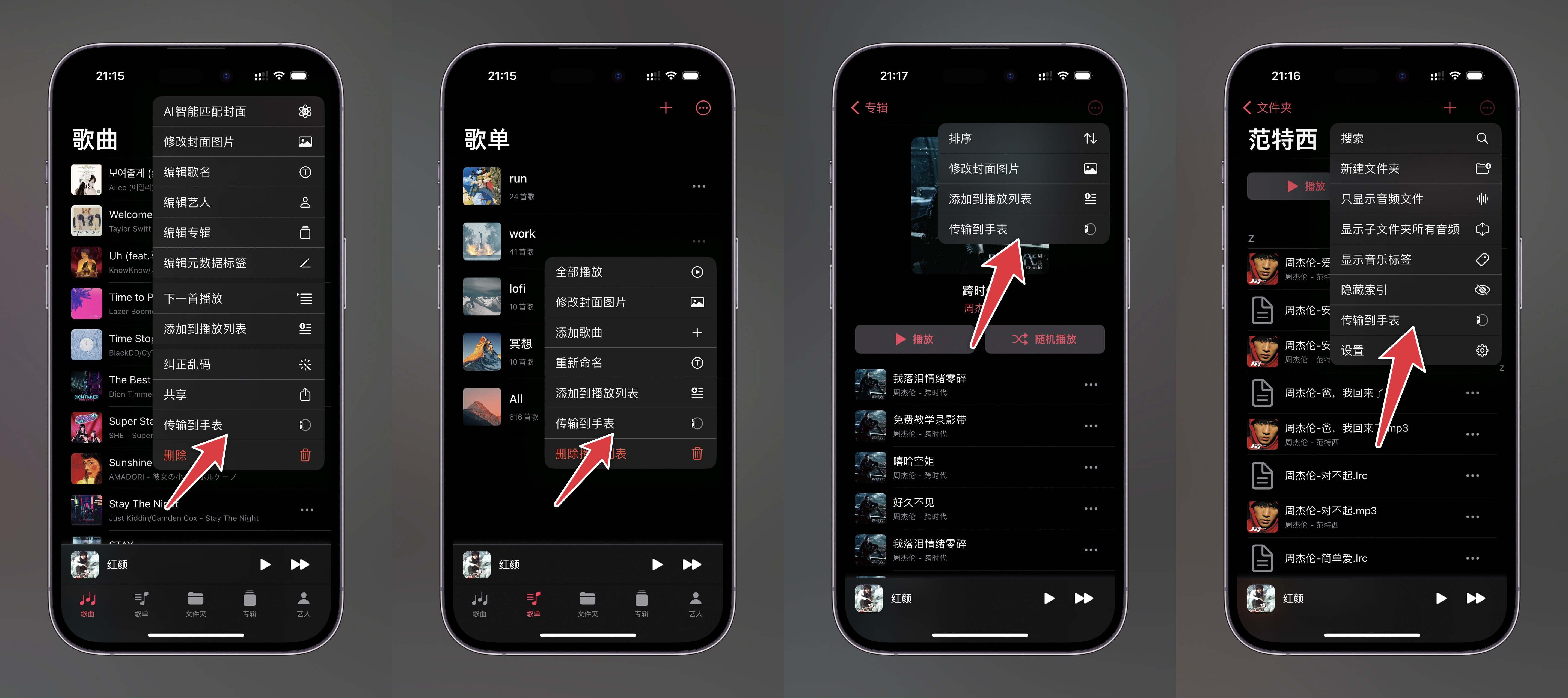
You can choose "Transfer to Watch" from song lists, playlists, albums, folders, or artist pages. The selected songs will be added to the transfer queue and sent to your watch one by one.
Supported formats on the watch: MP3, M4A, AAC, M4B, WAV, AIF, AIFF, AU, CAF, FLAC
⚠️ Some high-bitrate FLAC files may not play on the watch.
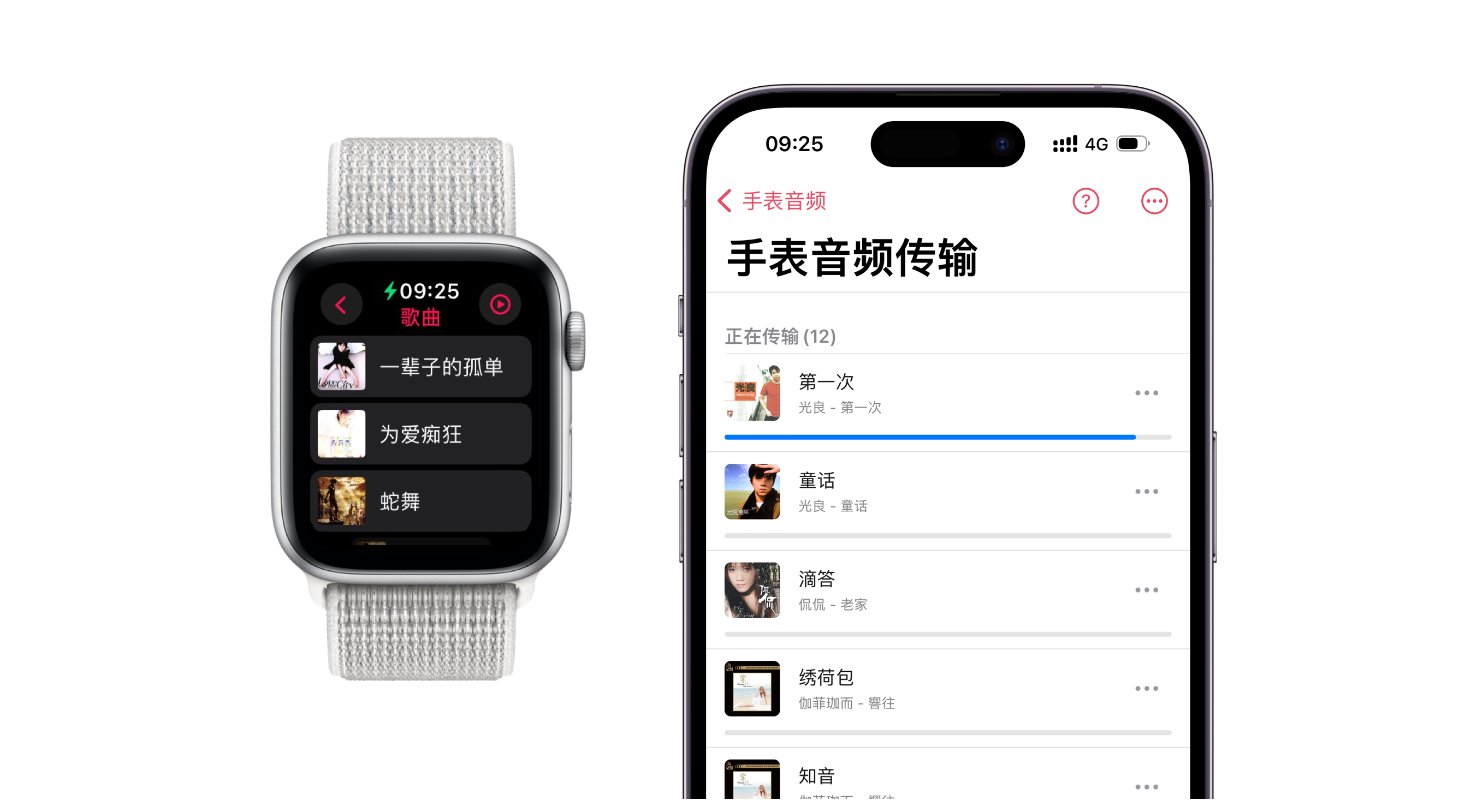
After initiating the transfer, it should begin within a minute. If there's no progress, try the following:
- Keep OnePlayer open on both devices and don't let the screen turn off
- Playing music on your phone while transferring can make the transfer more stable
- Make sure the watch battery is sufficiently charged
- If you're not in a hurry, the transfer can run in the background, but the timing is determined by the system
3. Play Music Independently on Watch
There are two types of content shown on the watch. The first is mirrored content from your phone — the music is actually stored on the phone, and tapping a song plays it on the phone.
The second type is music that has been transferred to the watch. This music is stored locally on the watch, and tapping a song plays it directly on the watch.
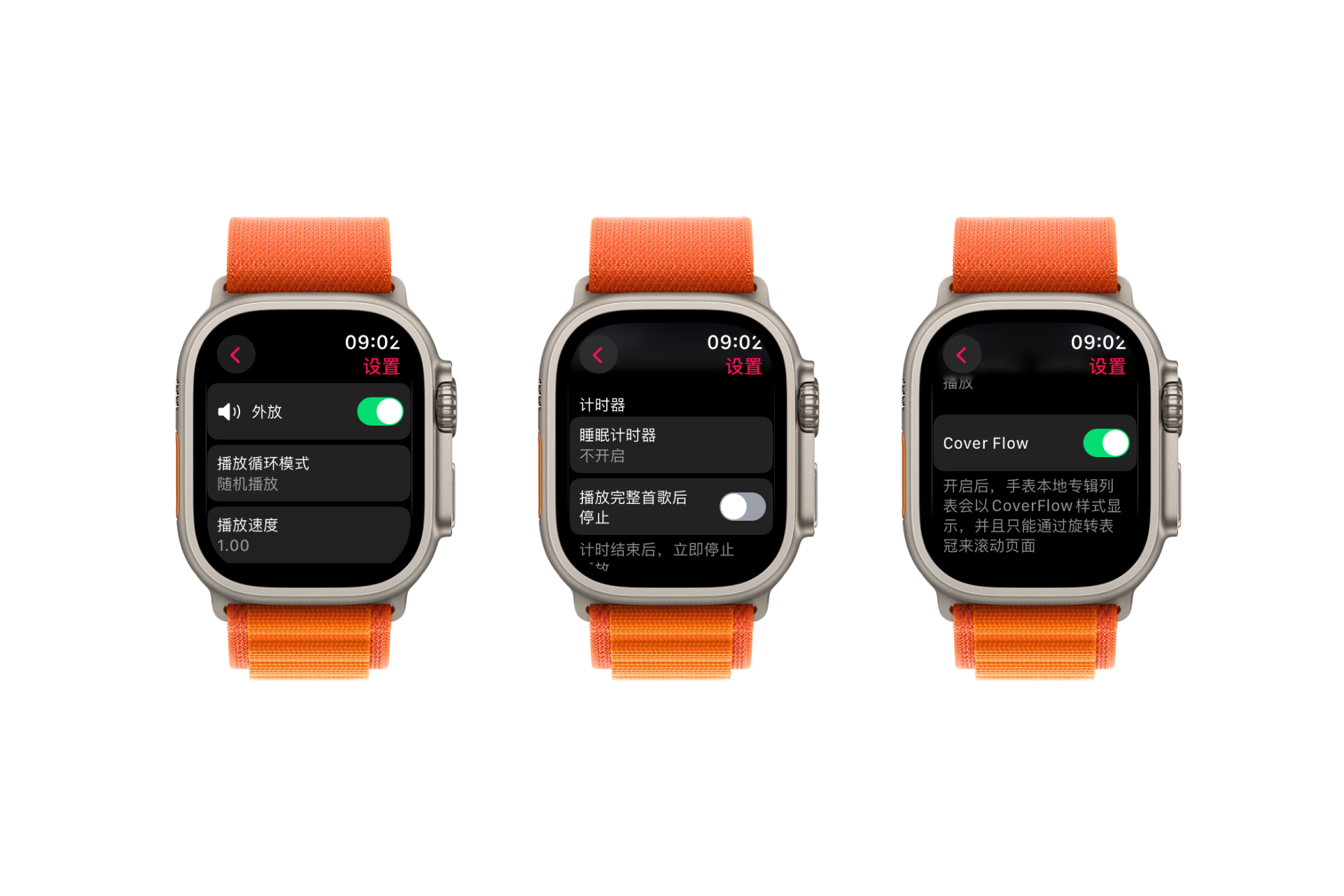
Playing music on the watch supports Bluetooth audio devices (such as AirPods or speakers) and the watch's built-in speaker. You can choose the playback method in the settings.